CSV Import
The Batch Import tab supports CSV file upload for bulk-validating up to 500 firewall rules at once.
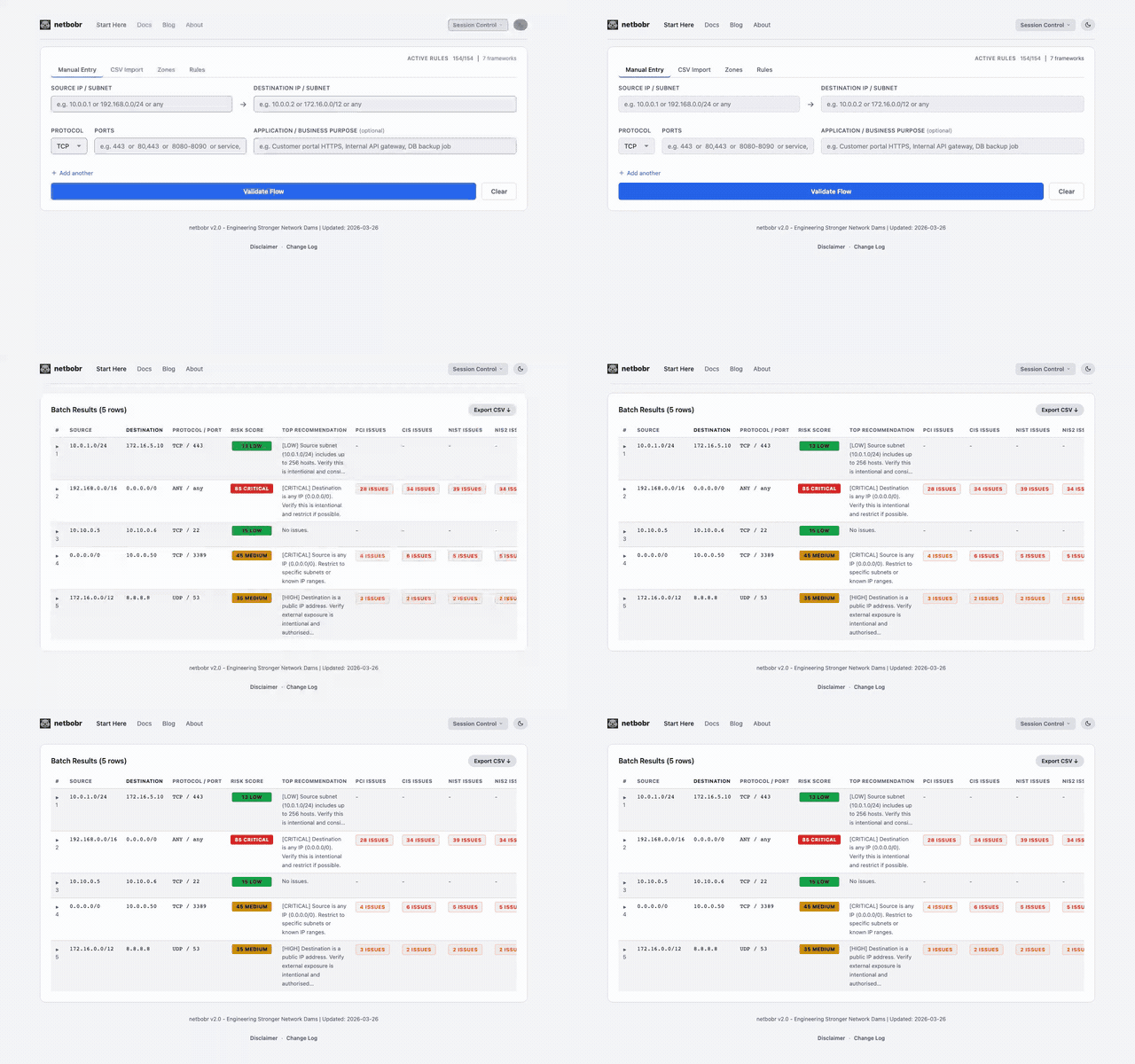
CSV format
Each row describes one flow in 4 or 5 columns, in this order:
| Column | Required | Description | Example |
|---|---|---|---|
| source | Yes | Source IP or CIDR subnet, or any | 10.0.0.0/8 |
| destination | Yes | Destination IP or CIDR subnet, or any | 8.8.8.8 |
| protocol | Yes | TCP, UDP, ICMP, or ANY (any case) | TCP |
| port | Yes | Port number, range, quoted list, or any. For ICMP: type number(s) or all | 443, 8080-8090, "80,443" |
| purpose | No | Business justification / application name | Web proxy egress |
Columns are read by position, so the header names do not matter (app_name, application_business_purpose and purpose all work for the fifth column).
Example CSV:
source,destination,protocol,port,application_business_purpose
10.0.1.0/24,172.16.5.10,TCP,443,Payment gateway HTTPS
10.0.1.0/24,172.16.5.11,TCP,"80,443",Web frontend
192.168.0.0/16,0.0.0.0/0,ANY,any,Default outbound
10.10.0.5,10.10.0.6,ICMP,"0,8",Monitoring ping
Header row
The header row is optional. The first row (after comments and blank lines) is treated as a header when both of these are true:
- its first cell does not look like an address (it does not start with a digit or
:, and is notanyorall); - its third cell is not a protocol name (
TCP,UDP,ICMPorANY).
Every valid data row fails this test, so a data row is never skipped by mistake. Headers such as source,destination,protocol,port, Source IP,Destination IP,Protocol,Port, src_ip,dst_ip,proto,port and From,To,Proto,Port are all recognised. Only the first row can be a header; a header-like row further down is shown as an error row.
Accepted syntax
- Lines starting with
#(also after leading spaces) are comments and are ignored. - Blank lines and rows of empty cells (such as
,,,,from a spreadsheet) are ignored. Empty cells after the fifth column are ignored too. - Quoted fields follow RFC 4180: a quoted field may contain commas and line breaks, and
""inside quotes is a literal quote. - A UTF-8 byte-order mark and Windows (CRLF), Unix (LF) or old Mac (CR) line endings are accepted.
- Semicolon- and tab-separated files are detected automatically from the first non-comment line. It is read as semicolon (or tab) separated when it has at least three semicolons (or tabs) outside quotes and either fewer than three commas, or the semicolon (tab) split puts a protocol name in the third column while the comma split does not. So semicolons in an unquoted purpose do not turn a comma file into a semicolon file. An Excel
sep=;(orsep=followed by a tab) first line is also honoured.
Quote port lists and ICMP type lists
A comma inside an unquoted port list splits the row into extra columns. Put lists in double quotes: "80,443" or, for ICMP, "0,8". Rows that look like an unquoted list are rejected instead of being silently misread:
- more than 5 columns, for example
10.0.0.1,10.0.0.2,TCP,80,443,Web; - exactly 5 columns where the fifth column is a number or a number range, for example
10.0.0.1,10.0.0.2,TCP,80,23(this would otherwise hide Telnet on port 23). A purely numeric purpose is not meaningful; add some text, such asTicket 4711.
Rows that cannot be read
A row that cannot be read is kept as an error row: it appears in the results table and in the export with its error message, and it is not analysed. Messages name the line in the file:
| Problem | Message |
|---|---|
| Too few columns | Line 7: 3 columns found, expected 4 or 5 (source, destination, protocol, port, optional purpose). |
| Too many columns | Line 6: 6 columns found, expected at most 5. Put port lists and ICMP type lists in double quotes, e.g. "80,443" or "0,8". |
| Numeric fifth column | Line 5: the 5th column "23" looks like a port. Put port lists in double quotes, e.g. "80,23". |
| Unclosed quote | Line 4: a quoted field is not closed (missing "). (the rest of the file belongs to this row) |
Rows with an invalid value, such as a malformed IP address, an unknown protocol or an empty port, are also shown as error rows, with the validation message.
Uploading
- Drag and drop a file onto the upload area, or click to browse for a file. Accepted extensions are
.csv,.txtand.md, plus the cloud formats. - A template CSV is available for download from the import tab. It lists the rules above as
#comments and contains example rows, including a quoted port list. - Maximum of 500 rows per import. Rows beyond the limit are ignored, and the status line says how many.
- For zone-aware analysis, define zones in the Zones tab (or load a saved session) before uploading.
Import status
The status line under the upload area reports what happened:
| Colour | Meaning | Example |
|---|---|---|
| Green | Every row was analysed | 12 rows analysed from flows.csv. |
| Amber | Some rows had errors, rows were ignored over the limit, or the parser reported warnings | 10 of 12 rows analysed from flows.csv - 2 rows had errors. |
| Red | Nothing could be analysed, or the file could not be read | 0 of 3 rows analysed from flows.csv - 3 rows had errors. / No data rows found in empty.csv. ... |
Every new upload replaces the previous file's results, even when the upload fails, so the table and the export never show results from an older file. A results table from manually entered flows is kept when an upload fails.
A .json, .yaml, .yml or .tf file that is not a supported cloud format gets a specific error (for example data.json: JSON structure not recognised. ...) instead of being read as CSV. A .csv, .txt or .md file gets that error only if its whole content is valid JSON; anything else, including a header such as [source],[destination],[protocol],[port], is read as CSV.
Results table
After validation completes, results appear in a sortable table with the following columns:
| Column | Description |
|---|---|
| # | Row number (data rows only, in file order) |
| Source | Source IP/subnet from the CSV |
| Destination | Destination IP/subnet from the CSV |
| Src Zone / Dst Zone | Matched zone names (shown when zones are configured) |
| Protocol / Port | Protocol and port(s), e.g. TCP / 443 |
| Risk Score | Composite risk score (0-100) with its severity label; hover for the breakdown |
| Zone Policy | ALLOW, REVIEW, DENY or NO MATCH (shown when zones are configured) |
| Top Recommendation | The most important built-in observation for the flow |
| PCI / CIS / NIST / NIS2 / DORA / ATT&CK Issues | Number of findings per framework |
| Custom | Number of custom rule findings |
Error rows show their message in place of the score and recommendation. Click any column header to sort, and click a row to expand its full findings. Large result sets are paginated automatically.
Exporting results
Click Export CSV ↓ to download the results as netbobr-results.csv, with one row per flow (error rows included):
- The header row is always line 1. There is no comment or preamble line, so the file loads directly with spreadsheet tools,
pandas.read_csvor Python'scsv.DictReader. - UTF-8 without a byte-order mark, one
\nafter every row. In Excel, use Data → From Text/CSV if non-ASCII characters (for example in zone names) display incorrectly. - Spreadsheet formula protection (OWASP CSV injection): a cell that starts with
=,+,-,@(or their full-width forms=,+,-,@, which some spreadsheet locales also evaluate), a tab or a line break is prefixed with a single quote ('=1+1), so a spreadsheet shows it as text instead of evaluating it. Cells containing commas, semicolons, tabs, quotes or line breaks are quoted. - Several values in one cell are joined with
;(other_observationsuses|).
Export columns
| Column | Description |
|---|---|
row | Row number, as in the table's # column |
source, destination | Source and destination as entered |
src_zone, dst_zone | Zone names as shown in the table; empty when no zones are defined |
zone_policy | ALLOW, REVIEW, DENY or NO MATCH, as in the table; empty when no zones are defined |
protocol_port | Protocol and port(s) as shown in the table, e.g. TCP / 443 |
risk_score | Composite risk score, 0-100 (the number in the table's Risk Score badge) |
risk_level | Label of the risk score: Low, Medium, High or Critical |
overall_risk | Highest single-factor level among source, destination, protocol and port: LOW, MEDIUM, MEDIUM-HIGH, HIGH or CRITICAL. It is not derived from risk_score: internal Telnet (port 23) is CRITICAL here while its score is 36 (Medium) |
src_scope, src_risk | Source breadth (e.g. Single host (/32)) and its level |
dst_scope, dst_risk | Destination breadth and its level |
port_scope, port_risk | Port exposure and its level (for ICMP, the protocol) |
other_observations | Built-in observations as [SEVERITY] text, joined with | |
pci_count, pci_rules | Number of PCI-DSS findings and the findings as RULE-ID (SEVERITY): finding |
cis_count, cis_rules | The same for CIS Controls |
nist_count, nist_rules | The same for NIST 800-53 |
nis2_count, nis2_rules | The same for NIS2 |
dora_count, dora_rules | The same for DORA |
mitre_count, mitre_rules | The same for MITRE ATT&CK, as RULE-ID [technique] (SEVERITY): finding |
custom_count, custom_rules | The same for custom rules; deny overrides end with [FORCE DENY] |
error | Why the row was not analysed; empty for analysed rows. On error rows, the score, scope, observation and count columns are empty |
disabled_rules | IDs of the rules disabled in the Rules tab at export time, sorted and joined with ; ; the same on every row, empty when none |
Counts are 0 (not empty) when an analysed flow has no findings for a framework.
# Disabled rules: ... comment (now the disabled_rules column), the # column is now row, and the risk column is now overall_risk. zone_policy, risk_score, risk_level and error are new.Cloud format imports
For importing native cloud firewall configurations (AWS Security Groups, Azure NSG, GCP Firewall Rules, Terraform, Kubernetes NetworkPolicy), see Cloud Imports. Cloud formats are auto-detected -- just drag and drop the exported JSON, YAML or .tf file. Cloud imports use the same status line, results table and export.