Risk Score Weights
The risk score engine calculates a composite score from 0 (no risk) to 100 (critical risk) for every validated flow. Four weighted factors contribute to the score, and you can adjust their relative importance to match your security priorities.
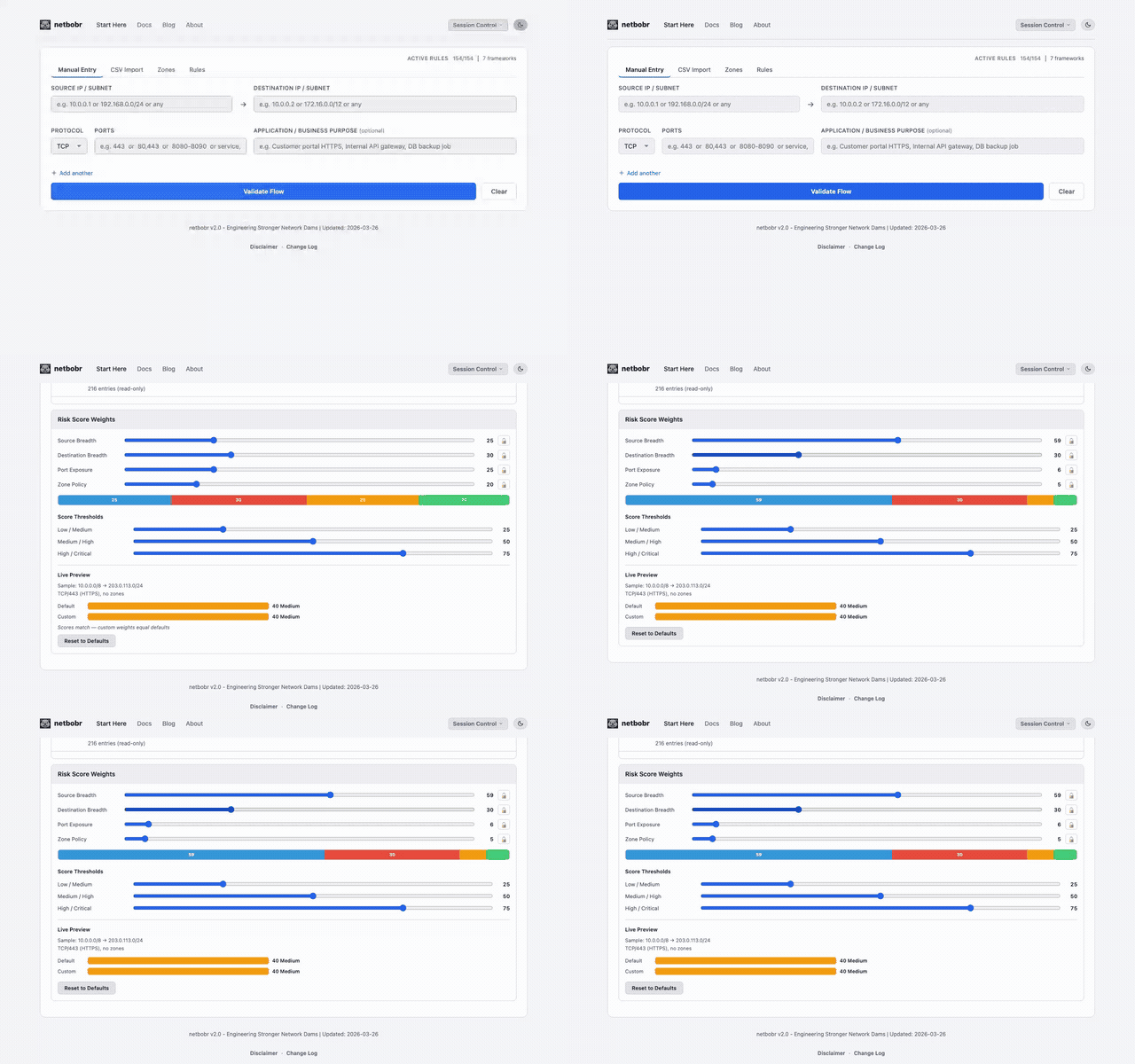
Weight factors
| Factor | Default Weight | What it measures |
|---|---|---|
| Source Breadth | 25 | How broad the source address is (e.g., 0.0.0.0/0 scores higher than a single host) |
| Destination Breadth | 30 | How broad the destination address is |
| Port Exposure | 25 | Risk associated with the port(s) - well-known risky ports and wide ranges score higher |
| Zone Policy | 20 | The zone-to-zone policy applicable to the flow (Deny > Review > Allow) |
Weights must always sum to 100. Each factor's maximum contribution to the final score is determined by its weight.
Adjusting weights
On the Rules tab, use the weight sliders to change factor contributions:
- Drag a slider to increase or decrease a factor's weight.
- Unlocked sliders auto-redistribute - when you change one slider, the remaining unlocked sliders adjust proportionally so the total stays at 100.
- Lock toggle - click the lock icon next to any slider to freeze its value. Locked sliders do not participate in auto-redistribution.
A stacked bar visualization below the sliders shows the current weight proportions at a glance.
Threshold customization
Risk scores are grouped into four severity tiers. You can adjust the tier boundaries:
| Tier | Default Range | Label |
|---|---|---|
| Low | 0-29 | Low |
| Medium | 30-59 | Medium |
| High | 60-79 | High |
| Critical | 80-100 | Critical |
Move the threshold sliders to shift tier boundaries. For example, lowering the Medium threshold from 30 to 20 causes more flows to fall into the Medium tier.
Live preview
The weight configuration panel includes a live preview that shows how the current weights compare to the defaults. Enter a sample flow or select from recent validations to see the score difference between your custom weights and the default configuration side by side.
Reset to defaults
Click Reset to Defaults to restore all weights and thresholds to their original values. This does not affect your validated flows or other settings.
Persistence
Weight and threshold settings are included in session saves. When you save a session, your custom weights are preserved and restored when the session is loaded.