Zone Management
Security zones let you model your network topology and define traffic policies between zones. When zones are active, validation results include zone badges and the zone-to-zone policy contributes to each flow's risk score.
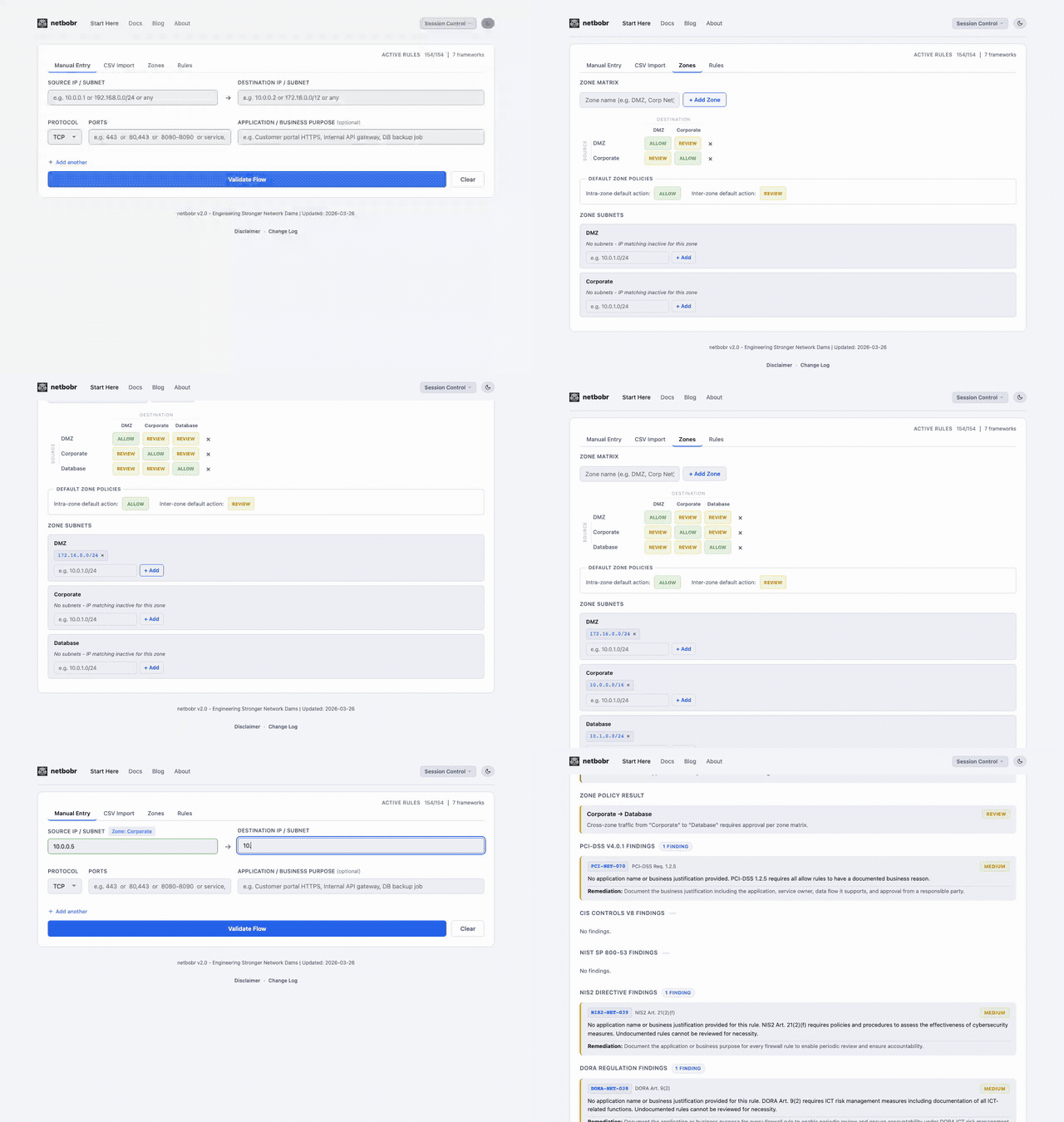
Defining zones
Create up to 10 security zones on the Zones tab. Each zone has:
- Name - letters and numbers, at most 20 characters, with at most one space between two words (e.g.,
DMZ,Corporate,Database,Mgmt Net). Names are unique, ignoring case. - CIDR subnets - one or more subnets assigned to the zone
Zone analysis is active as soon as at least one zone has a subnet. Zones without subnets cannot match any address, so they are ignored until you give them one. The Zones tab marks such zones with "No subnets - IP matching inactive for this zone".
Subnet rules
- A bare host is stored as a
/32(10.0.0.5becomes10.0.0.5/32), andanyorallis stored as0.0.0.0/0. - Host bits must be zero:
10.1.1.5/24is rejected with a suggestion (did you mean 10.1.1.0/24?). - A subnet can belong to only one zone. Adding a subnet that another zone already has is rejected, and the error names that zone, e.g.
"10.5.0.0/24" is already defined in zone "First". A subnet can belong to only one zone.10.0.0.5and10.0.0.5/32count as the same subnet, and so doanyand0.0.0.0/0. - Nested subnets are allowed across zones, for example
10.0.0.0/8in Corporate and10.2.0.0/16in Database. The Zones tab shows an information notice listing each nested pair. This is expected: the most specific subnet wins (see below).
How addresses are matched to zones
Each side of a flow (source and destination) is matched separately:
- Containment. A flow address belongs to a zone only if its entire range lies inside one of the zone's subnets. A host must be inside the subnet. A CIDR must fit completely, so a
/8flow does not inherit the zone of a/24it happens to contain. - Longest prefix wins. If several subnets (in different zones) contain the range, the most specific one decides the zone.
any/0.0.0.0/0is contained only by a0.0.0.0/0subnet.
If no subnet covers the whole range, that side has no zone match.
Examples using the example topology below (Internet 0.0.0.0/0, DMZ 172.16.0.0/24, Corporate 10.0.0.0/16, Database 10.1.0.0/24):
| Flow address | Zone | Why |
|---|---|---|
10.0.5.20 | Corporate | Inside 10.0.0.0/16 |
10.0.8.0/24 | Corporate | The whole /24 is inside 10.0.0.0/16 |
10.1.0.50 | Database | Inside 10.1.0.0/24 |
10.1.0.0/24 | Database | Equal to the zone subnet |
10.1.0.0/23 | Internet | Also covers 10.1.1.x, which is outside Database; only 0.0.0.0/0 contains all of it |
10.0.0.0/15 | Internet | Spans Corporate and Database; only 0.0.0.0/0 contains all of it |
172.16.0.0/23 | Internet | Wider than the DMZ /24 |
8.8.8.8, any | Internet | Only 0.0.0.0/0 contains them |
Without a 0.0.0.0/0 zone, the last four rows get No zone match instead. A catch-all 0.0.0.0/0 zone therefore also catches private ranges that straddle your zones. If such a range should map to an internal zone, give that zone a subnet that covers the whole range (for example 10.0.0.0/8).
Zone-to-zone policy matrix
The policy matrix defines the default traffic posture between every pair of zones. Each cell has three states:
| Policy | Meaning | Risk impact |
|---|---|---|
| Allow | Traffic between these zones is expected | Lowest risk contribution |
| Review | Traffic may be legitimate but requires scrutiny | Moderate risk contribution |
| Deny | Traffic between these zones should not exist | Highest risk contribution |
Adjust policies by clicking cells in the matrix to cycle through Allow, Review, and Deny.
Default zone policies
The Intra-zone default action and Inter-zone default action buttons below the matrix cycle through Allow, Review and Deny. The defaults are Allow for same-zone traffic (A → A) and Review for cross-zone traffic (A → B).
Changing a default sets every matching cell to the new value: every same-zone cell for the intra-zone default, or every cross-zone cell for the inter-zone default. That includes cells you changed by hand. If any customised cells would be overwritten, netbobr first asks you to confirm and lists them. Cancel leaves both the matrix and the default unchanged. Zones you add later start with the current defaults.
Example topology
The following diagram illustrates a typical four-zone layout with directional policies:
0.0.0.0/0] -->|Review| DMZ[DMZ
172.16.0.0/24] DMZ -->|Review| Corporate[Corporate
10.0.0.0/16] Corporate -->|Review| Database[Database
10.1.0.0/24] Internet -.->|Deny| Corporate Internet -.->|Deny| Database DMZ -.->|Deny| Database
Solid arrows represent Review policies where traffic may be legitimate. Dashed arrows represent Deny policies where traffic should not occur.
Impact on validation
When zones are active:
- Zone badges appear on the source and destination fields and in manual and CSV results. A side that matches no zone shows a No zone matched badge and the zone label Undefined.
- Zone policy feeds into the composite risk score through the Zone Policy factor. See Zone Policy scoring for how the contribution is calculated.
- One-sided matches. If only one side matches a zone, no zone-to-zone policy applies. The result shows UNMATCHED ("Source or destination is not entirely inside any zone subnet - verify zone coverage"), and the factor scores as No zone match with no policy floor.
- Same subnet. If both sides fall inside the same subnet of the same zone (
0.0.0.0/0excluded), the advice list ends with an informational note that a firewall policy may not be required for this connectivity. - Live refresh. Results already on screen are re-analysed automatically after any zone change: adding or removing a zone or subnet, clicking a matrix cell, or changing a default.
Zone configuration sharing
Zone configurations are included in session files. Use Save Session and Load Session in the header to share your complete zone setup (names, subnets, policy matrix and zone attributes) with teammates or between environments.
- Zone attributes (classification, environment, compliance scope and data sensitivity, used by custom rule conditions) are saved by zone name, so they stay with the right zone when other zones are deleted or reordered.
- Older session files stored attributes by internal position (
z1= first zone). On load they are matched to zones by position, and a notice asks you to check them, because a zone deleted before the old file was saved shifts the positions. - Duplicate subnets in older files. If an older file defines the same subnet in two zones, the first zone in the file keeps it, the copy is dropped, and the load shows a warning naming both zones. A zone left without subnets is ignored for matching.
- CLI. The same zone configuration can be passed to the CLI with
--config. The CLI uses exactly the same matching, policies and scoring as the web app.